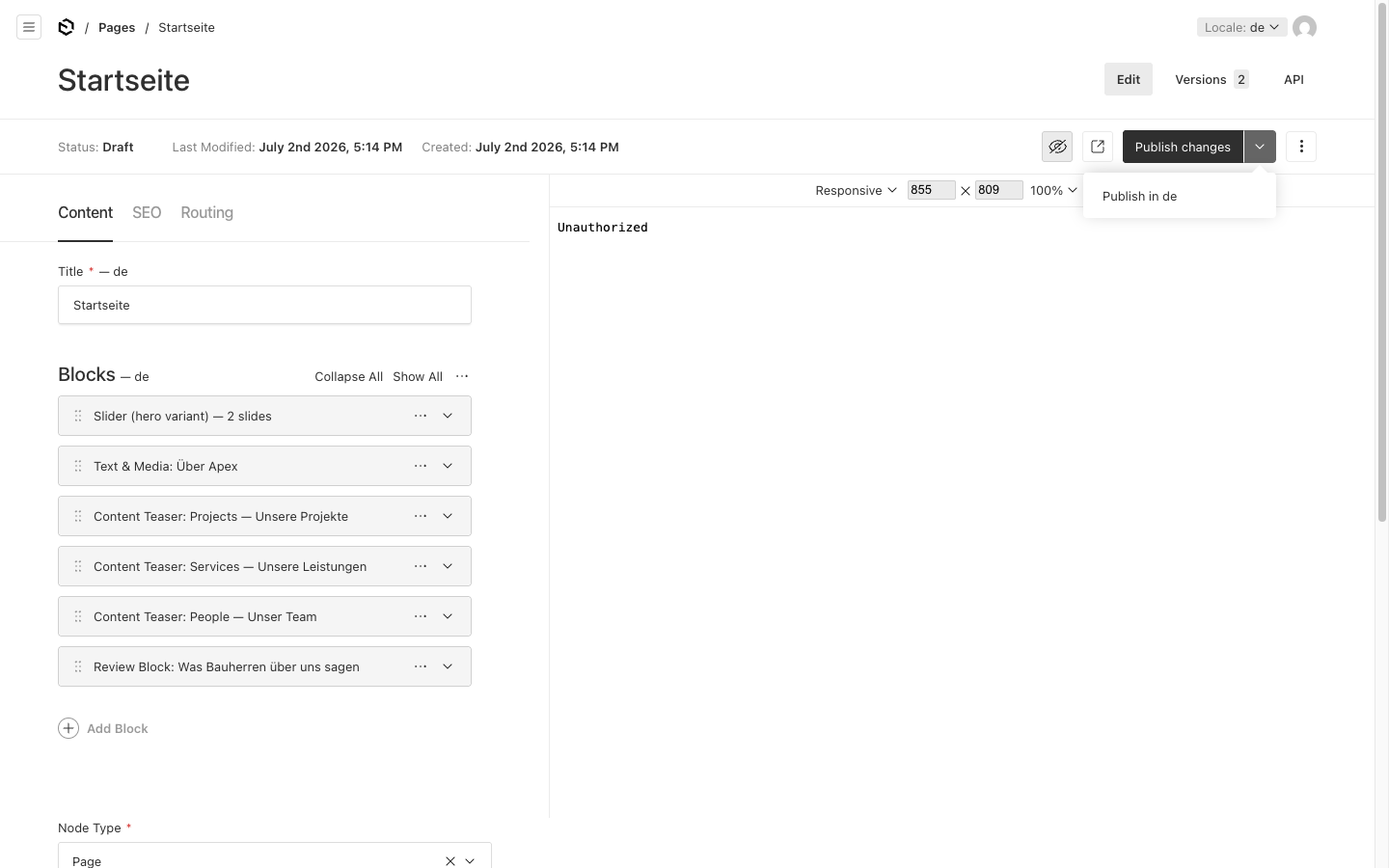
Preview & publish
Check your changes in the live preview, then make them public.
1 Live preview
While editing a page, open the live preview. You see the page as it appears on the website — and can switch between Mobile (375 px), Tablet (768 px), and Desktop (1440 px) views. Your edits are continuously saved as a draft (autosave).
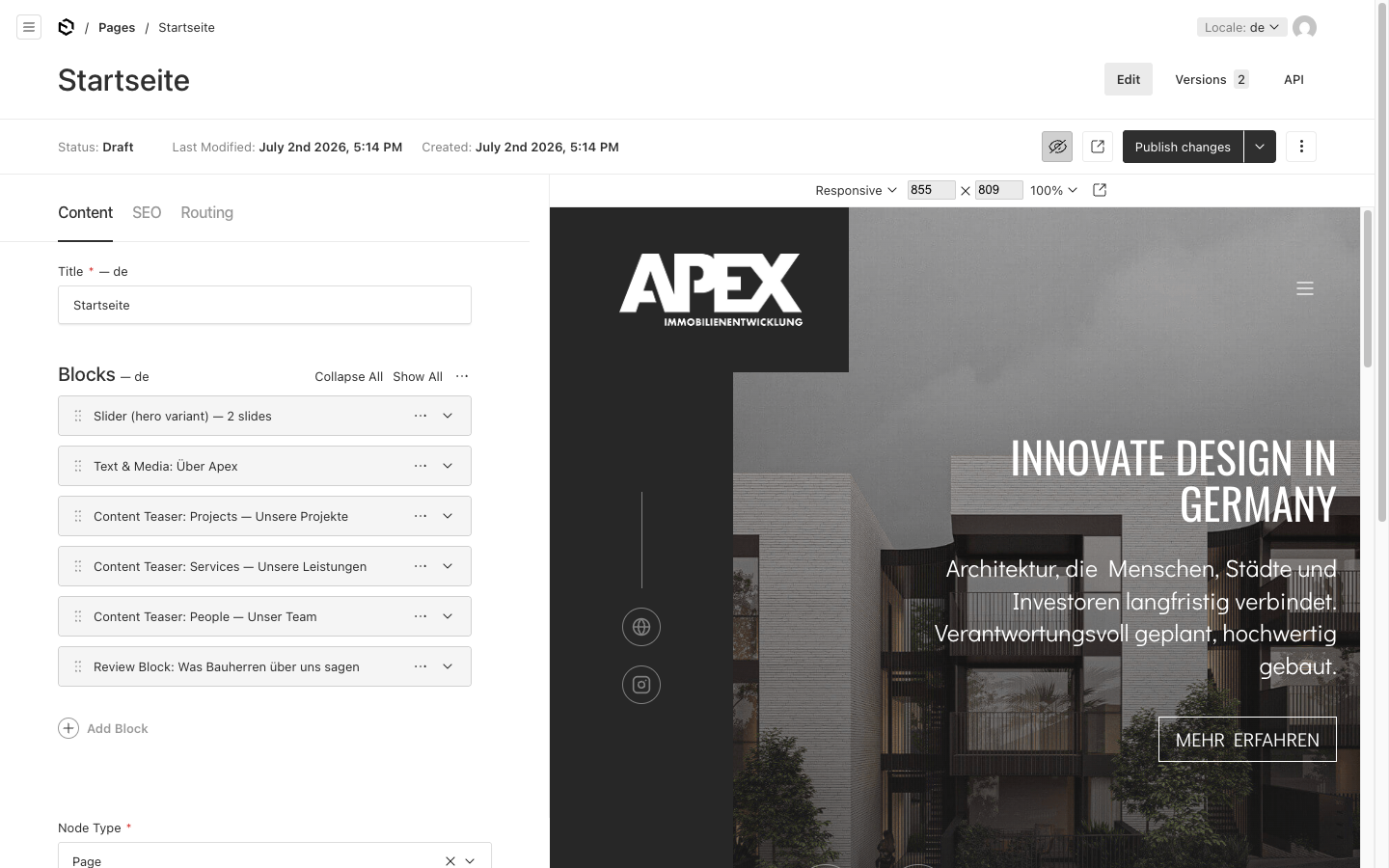
2 Publish
As long as a page is in Draft status, visitors cannot see it. When you are happy, click Publish — only then does the page (or its changes) go public. Using the version history you can roll back to an earlier state if needed.