Create & organise pages
Work the page tree, create a page, and set address, menu and SEO on the “Seite” tab.
1 The page tree
The tree sits on the left: sub-pages hang under their parent, and a caret folds a branch open and shut. One click selects a page — the preview appears in the middle, the fields on the right. The pin at the top of the tree keeps it open or folds it away; folded, a narrow Seiten rail stays on the left to bring it back. A struck-through eye on an entry means the page is not in the menu.
2 Create a new page
Neue Seite (New page) sits at the bottom of the tree; hover an existing entry instead and its + creates a sub-page directly underneath. You are asked for the kind first, because everything else follows from it:
- Leere Seite (Empty page) — a real page with its own address and its own blocks.
- Ordner (Folder) — a menu branch without a page of its own; it groups sub-pages without appearing in their addresses.
- Externer Link (External link) — a menu entry pointing at someone else’s address; it has no blocks.
3 Move, hide, delete
The ⋮ on an entry (or a right-click on it) opens the rest: Im Menü zeigen / Aus dem Menü nehmen (show in / remove from menu), Nach oben and Nach unten (move up/down among siblings), Verschieben nach… (move under another page or to the top level), and Löschen (delete). Taking a page out of the menu does not delete it — it stays reachable at its address, it just leaves the navigation.
4 The “Seite” (Page) tab
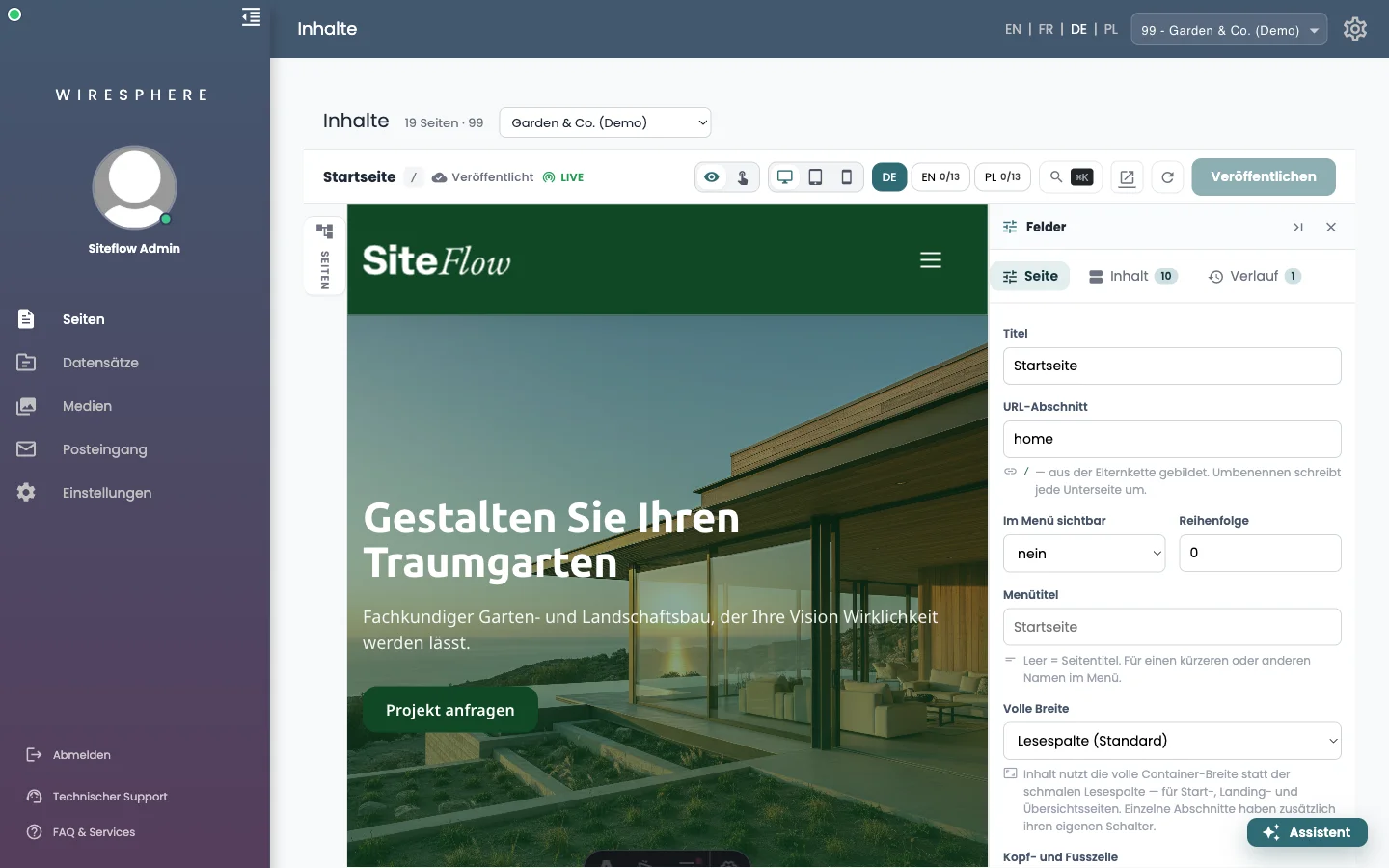
First tab in the fields panel on the right. It describes the page as a whole:
- Titel — the page name.
- URL-Abschnitt — your part of the address. The full path is built from the parent chain; renaming rewrites every sub-page with it.
- Im Menü sichtbar and Reihenfolge — whether and where the page appears in the navigation.
- Menütitel — a shorter name for the menu only; empty means the page title.
- Volle Breite — Lesespalte (reading column) is the default; Volle Breite (full width) uses the whole container, for home and overview pages.
- Kopf- und Fusszeile — optionally without header and footer, for a landing page that takes the whole screen.
5 Search engines
Further down the same tab: SEO-Titel and SEO-Beschreibung are what Google shows. The Social-Media-Bild is the preview when the page is shared; without one, the default image from Settings applies. Suchmaschinen: Nicht indexieren keeps the page out of search results — useful while a page should not be found yet.
6 Jump anywhere: ⌘K
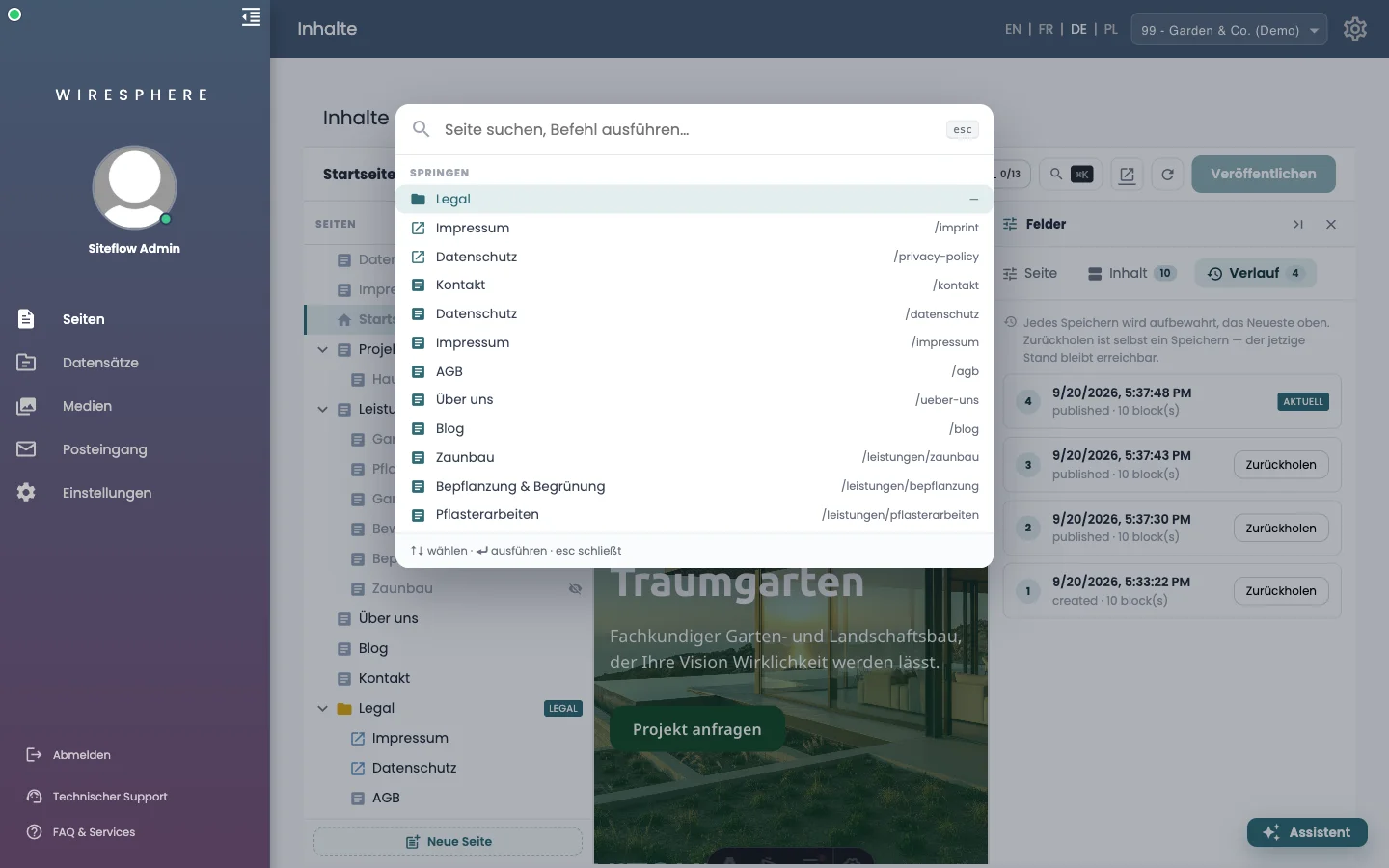
The magnifier at the top right (or ⌘K / Ctrl+K) opens the command line. Type a page name to jump to it; it also offers create sub-page, insert block and the language switch. ↑↓ selects, ⏎ runs, esc closes.