Build content from blocks
A page is made of blocks. How to add them, edit them, and get them into the right order.
1 The “Inhalt” (Content) tab
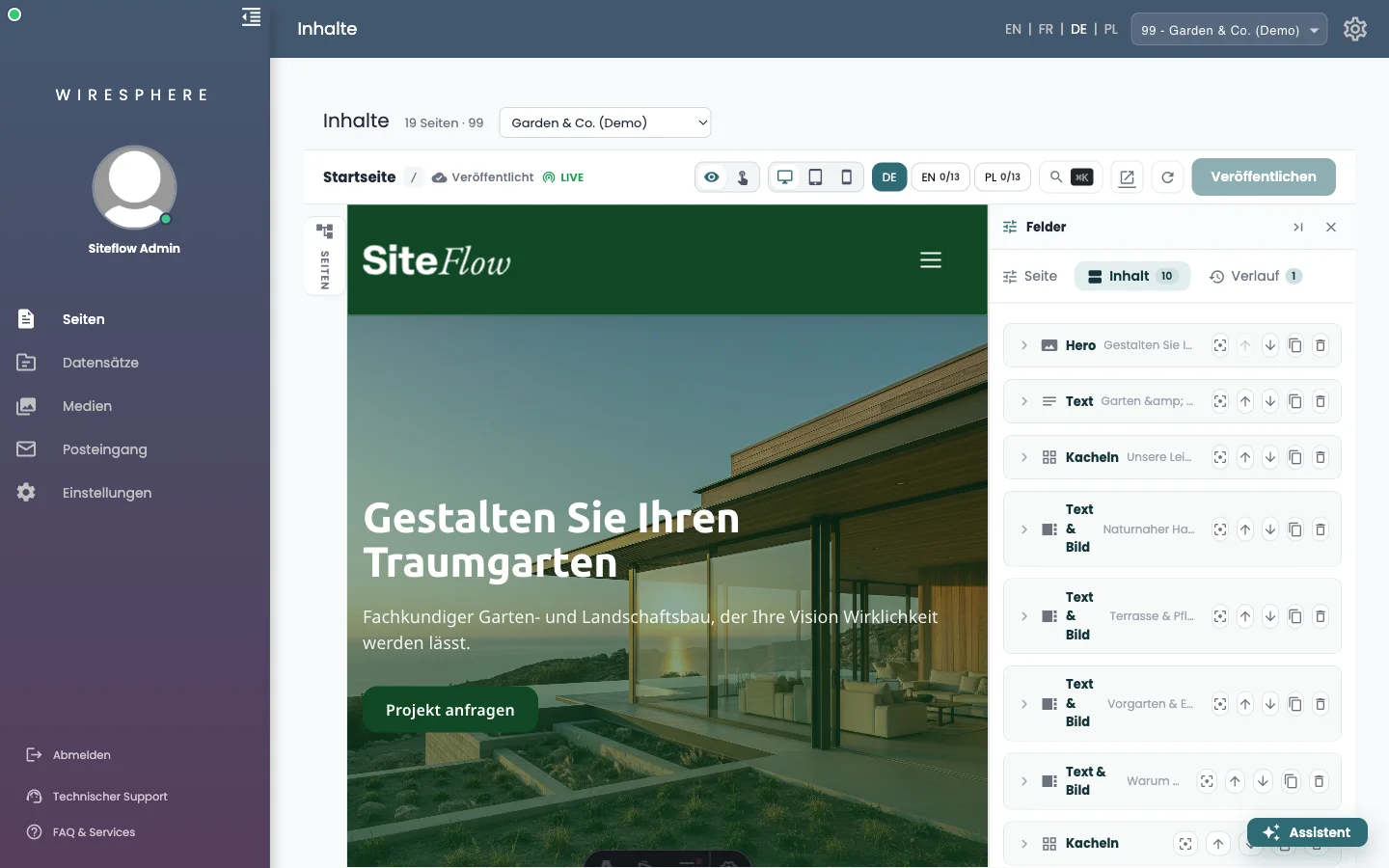
The second tab in the fields panel lists every block on the page top to bottom, with an icon, its kind, and a snippet of text to recognise it by. The number on the tab says how many there are. What sits above another here sits above it on the website.
2 Edit a block
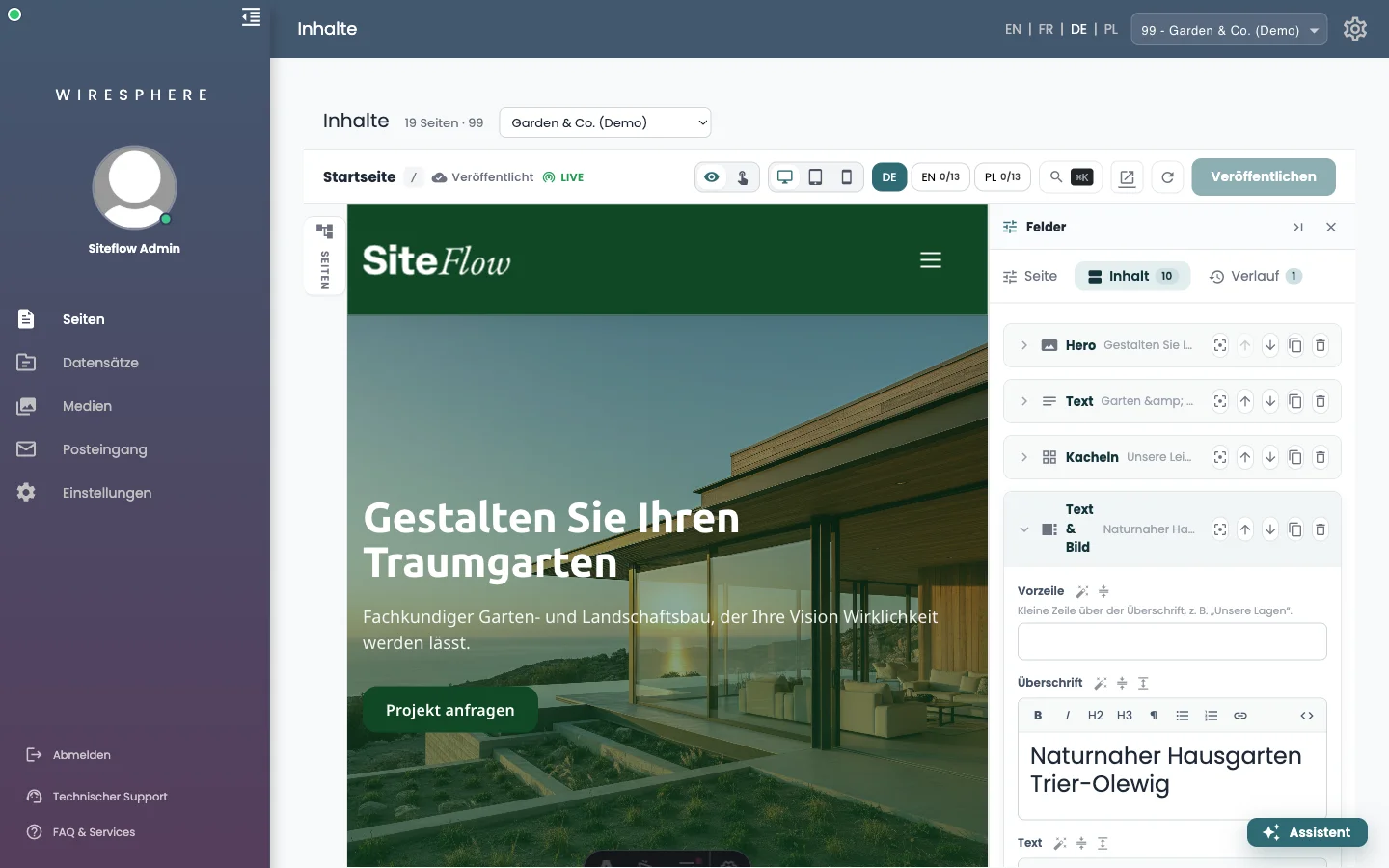
Clicking the row expands the block. The fields that carry the message come first — eyebrow, headline, text, image, buttons. Below them, under Gestaltung (Design), the look: layout, background colour, which side the image sits on, overlay. Rarely used things stay folded: Video and Abstände & Technik (spacing & technical). Formatted text fields carry a small toolbar with bold, italic, headings, lists and links.
3 Add a block
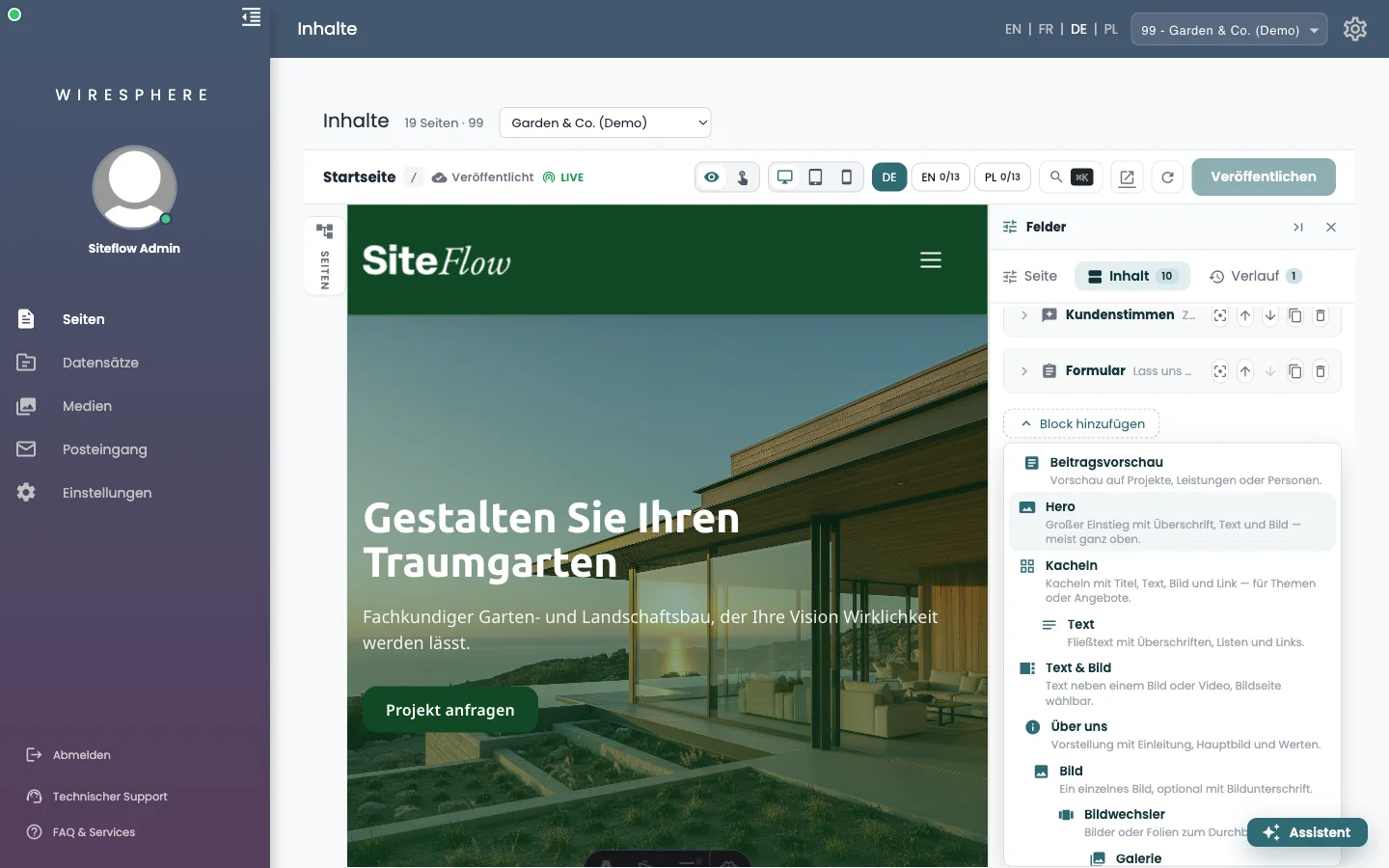
Block hinzufügen (Add block) sits at the very bottom. The chooser shows an icon, a name and one sentence per kind — Hero, Text, Text & Bild (text & image), Bild (image), Galerie (gallery), Bildwechsler (slider), Kacheln (tiles), Beitragsvorschau (content teaser), Kundenstimmen (reviews), Akkordeon, Reiter (tabs), Zeitstrahl (timeline), Ablauf (process), Aufruf (CTA), Formular (form), HTML-Code. The kinds your design explicitly styles come first; the rest follow under Weitere Blöcke (more blocks).
4 Reorder, duplicate, remove
The handles sit on the right of each block row: Nach oben and Nach unten move the block, Duplizieren puts a copy directly below it, Entfernen deletes it after a confirmation. The crosshair button isolates this block alone in the preview — handy on a long page; one click above it returns you to the whole page.
5 There is no “Save” button
That is deliberate. What you type is written continuously into the draft; the bar at the top then reads Unveröffentlichte Änderungen (unpublished changes). Nothing changes for visitors meanwhile. You make the decision with Veröffentlichen (Publish) — see the guide Draft, publish, history.